
What is Voice-to-Text (Voice Typing)?
Voice-to-Text allows students to speak their answers instead of typing them. This accommodation is now available for both open-ended and fill-in-the-blank questions, giving students another way to respond to activities in Ori Learning.
For: teachers
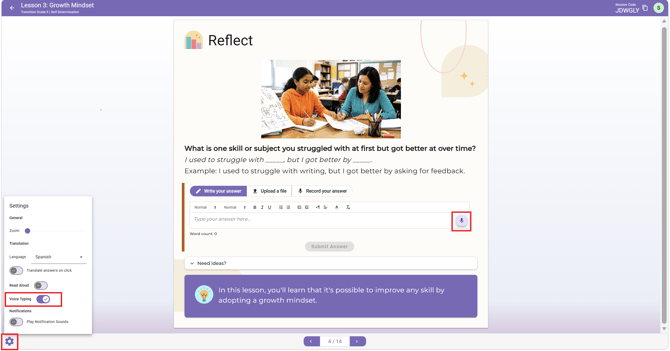
Turn on voice-to-text
Students turn accommodations on themselves, from the gear icon in their own lesson. Changing them in your own view doesn't change them for your students.
- The gear icon ⚙️ can only be found inside a lesson. Open the lesson first; the 'Courses' and 'Activity' pages don't have it.
- Click the gear icon ⚙️ at the bottom left of the lesson. 'Accommodations' opens.
- Enable the Voice-Typing accommodation.
- Continue through the lesson until you reach an open-ended or fill-in-the-blank question.
- Select the voice-input 🎙️ option in the response field and speak your answer.
- Remind students to review the text generated speech and make any necessary corrections before submitting responses.
Click here to learn more information about Ori's built in accommodatons.
Important Information
- Voice-to-Text is available for open-ended and fill-in-the-blank questions.
- Students must turn on Voice-to-Text in the Accommodations menu.
- Students should review their responses for accuracy before submitting.
Still need help?
Include:
- the student's username and class name
- the lesson and the accommodation that isn't working
- the device and browser
- the exact message on screen, if any
Send us a request — or, if someone is available, chat with us. You can also email support@orilearning.com with the same details.
What happens next: we'll acknowledge your request, come back to you if we need to confirm anything, and tell you when it's done.